Input Form History remembers the responses entered when you execute an Input Form and allows you to restore them later.
This can be useful when completing several similar forms, if a form is closed accidentally, or if the completed text is not inserted into the target application.
You can also reset the form to its default values.
This feature is available in PhraseExpander Medical and Enterprise editions.
Using Input Form History
In the Input Form dialog, click History, or press CTRL+H, to open the History menu.
Each saved response shows when it was captured and a preview of the values entered.
Select a saved response to restore its values, or select Default values to reset the form to its initial values.
Select Clear history for this template to remove the saved responses for the current template. The form you are currently filling in is not changed.
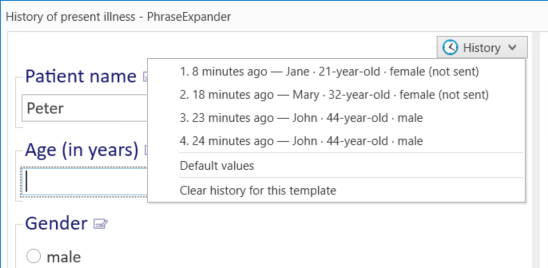
The History menu displays the responses saved for the current template.
What is saved
Input Form History saves the values entered in text, list, grid, calendar, and section fields. It also saves changes made to the fields that are manually modified.
It does not save the Input Form’s position or size, the selected field, collapsed sections, or the target application. Only your responses and preview edits are retained.
An execution or preview in which you do not change anything does not create a History entry.
Restoring responses after a template changes
If the template has changed since a response was saved, a warning icon appears beside that History entry. Its tooltip states: “The template changed since this response was saved. Some fields may not be restored.”
When you restore the response, compatible fields and preview edits are restored. New or incompatible fields retain their default values, and removed fields are ignored. Renamed variables retain their saved values. A saved list selection is restored only when the corresponding list option still exists.
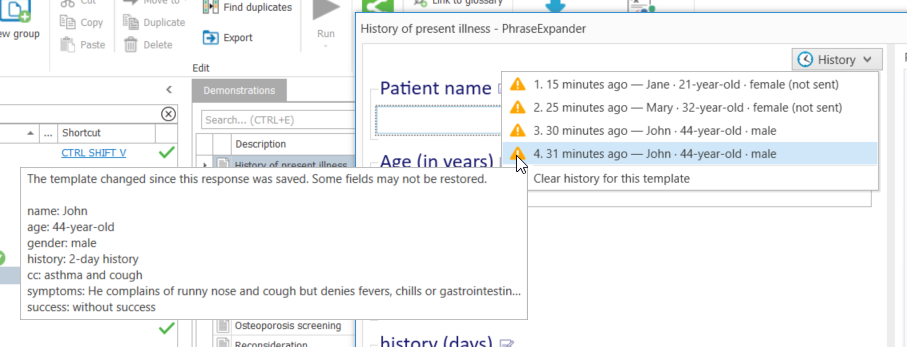
The warning icon identifies responses saved before the template was changed.
When history is available
PhraseExpander keeps Input Form History in memory during the current PhraseExpander session. Saved responses remain available when you close and reopen an Input Form.
Closing the Input Form does not clear its saved responses. However, nothing is saved to disk: all Input Form History is discarded when you close PhraseExpander.
Saving responses when canceling a form
Canceling an unfinished Input Form will display the Save your responses? prompt. Choose:
•Save responses - Closes the form and adds the responses to History.
•Discard - Closes the form without adding the responses to History.
•Continue editing - Returns to the Input Form without closing it.
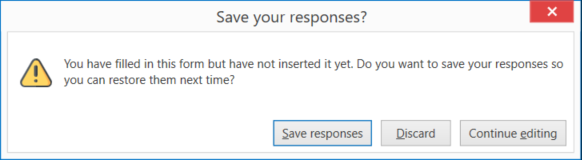
The Save your responses? prompt lets you save or discard the responses, or continue editing the Input Form.
Configuring Input Form History
Use File > Options > Execution to configure Input Form History:
•Save the responses entered in the Input Form for quick restore - Enables or disables Input Form History. This option is enabled by default.
•Responses kept per template - Sets the maximum number of responses retained for each template. The default is 8; the permitted range is 1–20.
•Keep responses for (hours) - Sets how long responses remain available during the current PhraseExpander session. The default is 24 hours; the permitted range is 1–96 hours.
•Clear history now - Removes all saved Input Form responses for all templates. It does not change the values currently displayed in an open Input Form.
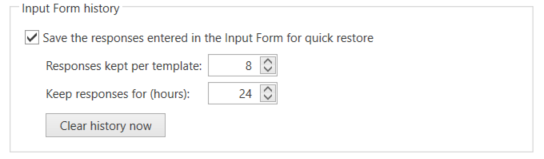
Configure Input Form History in File > Options > Execution.