A shared glossary file should be connected to only one linked glossary in each database.
As of v5.10, PhraseExpander actively prevents the same shared glossary from being linked more than once, and automatically cleans up any duplicates left behind by earlier versions. None of these safeguards ever delete your templates.
Why a shared glossary can be linked only once
When you link a glossary to a shared file, PhraseExpander keeps a private record of what that glossary has already sent and received, so it knows what has changed since the last synchronization. If two glossaries in the same database are linked to the same shared glossary, they both try to maintain that record against the same file.
The two records overwrite each other, and synchronization can apply the wrong changes or lose updates. To keep your data safe, each shared glossary can be linked only once per database.
Linking to a glossary that's already linked

From v5.10, PhraseExpander checks the file you choose before creating a link. If that shared glossary is already linked in the current database, it will not create a second link. What happens next depends on the file you picked:
1.You selected the file that is already linked: PhraseExpander tells you it is already linked and offers to take you straight to the existing glossary. Choose "Go to glossary" to select it, or "Cancel" to do nothing.
2.You selected a copy of an already-linked shared glossary in a different location: PhraseExpander offers two choices: "Go to glossary" to jump to the existing link and change nothing, or "Update link location" to point the existing link at the file you just selected (use this when the shared file has simply moved).
3.You selected several files at once: Any that are already linked are skipped, and PhraseExpander lists them so you can see which ones were not added.
Automatic cleanup when you open your database
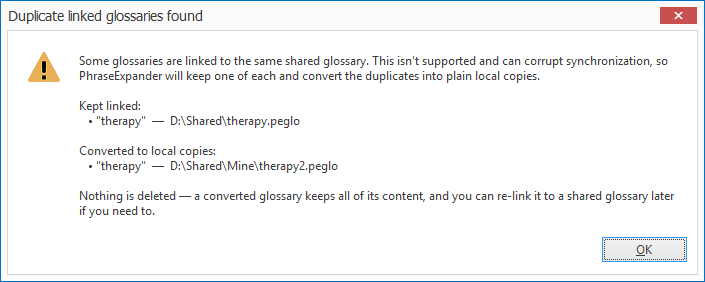
Databases created or synchronized with versions earlier than v5.10 may already contain duplicate links. PhraseExpander resolves these automatically when you open the database:
1.It checks for glossaries that are linked to the same shared glossary.
2.For each set of duplicates, it keeps the most suitable one linked — preferring the glossary whose file is available and most up to date.
3.It converts the remaining duplicates into ordinary local glossaries, keeping all of their templates.
4.It shows you a summary listing which glossary stayed linked and which were converted
No action is required, and nothing is deleted. If you later want a converted glossary to sync again, you can link it to a shared glossary as usual.
When a linked file has been replaced with a glossary that was already linked
Sometimes the file behind a link is changed outside PhraseExpander — for example, it is overwritten with a copy of a different shared glossary that is already linked in your database. Synchronizing in that situation would create a duplicate, so PhraseExpander stops:
1.It detects that the linked file no longer matches the glossary and now belongs to another linked glossary.
2.It stops synchronizing that glossary — it will not update it automatically, even if automatic updates are turned on, and it will not import the file's contents.
3.It marks the glossary and shows a notification explaining what happened.
Unlike the automatic cleanup above, this situation is not resolved on its own. The glossary stays flagged until you take action, so that no incorrect content is pulled in.
You may decide to unlink this glossary or the others that are pointing to the same glossary file.
Recognizing a duplicate link
A glossary in this state is easy to spot:
1.Its status icon changes to the duplicate-link icon 
2.Its tooltip shows Duplicate of <name>, where the name is the glossary it now conflicts with.
3.If you try to get changes for it manually, PhraseExpander declines and explains why instead of importing anything.
NOTE: if the glossary file has been generated with v5.10 or above, PhraseExpander will immediately show the error icon. If a previous version is used, the error status will be displayed when you click on the Get changes button
Resolving a duplicate link
Choose the option that matches what you intended:
1.You want this glossary to keep syncing with its original shared file. Put the correct file back in its original location. PhraseExpander will recognize it again and resume normal synchronization.
2.You no longer need this glossary to be shared. Unlink it. It becomes an ordinary local glossary and keeps all of its templates.
3.You want it linked to a different shared glossary. Unlink it first, then link it to the correct file.
Your templates are never lost: every safeguard described here is non-destructive. A glossary that is skipped, converted, or unlinked always keeps its templates, and you can link it to a shared glossary again at any time.