Use Change abbreviation prefix to apply or remove a prefix on the abbreviations of multiple templates at once. For example, you can add a dot to abbreviations to help prevent them from triggering while you type ordinary words.
The prefix you enter determines how PhraseExpander handles the prefix edit. A prefix containing no letters or digits, such as "." or "..", is treated as punctuation. Any prefix containing a letter or digit, such as "dr" or ".x", is treated as text.
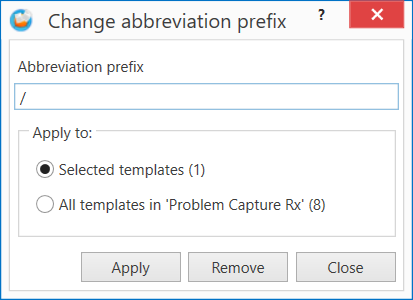
Changing abbreviation prefixes
1.Select one or more templates, right-click the selection, and select Abbreviation > Change prefix
2.Enter the prefix you want to apply or remove. Prefixes cannot contain a space or the | character
3.Under Apply to, choose Selected templates (N) to change only the highlighted templates. If you selected exactly one template, you can instead choose All templates in '<name>' (N) to include every template in its group or glossary and any subgroups
4.Click Apply or Remove, review the confirmation, and click Yes to proceed or No to leave the abbreviations unchanged
5.Click OK on the completion message, then click Close to exit the Change abbreviation prefix window
Applying a prefix
For punctuation prefixes, Apply makes each abbreviation start with exactly the prefix entered. It adds missing punctuation, trims extra matching punctuation, and leaves an abbreviation unchanged if it already matches. Other leading punctuation is retained:
ap + ".." → ..ap
.ap + ".." → ..ap
....ap + ".." → ..ap
..ap + ".." → ..ap (unchanged)
;ap + ".." → ..;ap
For text prefixes, Apply adds one occurrence only if the abbreviation does not already start with that prefix. This check ignores capitalization. Apply never removes characters or changes the abbreviation’s existing capitalization:
ap + "c" → cap
cca + "c" → cca (unchanged)
xray + "dr" → drxray
drug + "dr" → drug (unchanged)
BP + "b" → BP (unchanged)
Removing a prefix
For punctuation prefixes, Remove clears the entire matching run at the start of the abbreviation. The number of characters entered does not matter: removing "." and removing ".." both clear all leading dots. Other punctuation is left alone:
.ap − "." → ap
...ap − "." → ap
...ap − ".." → ap
;ap − "." → ;ap (unchanged)
For text prefixes, Remove takes away only one occurrence at a time, and capitalization must match. You can repeat the operation to remove another occurrence:
qqQuickAnswer1 − "q" → qQuickAnswer1
qQuickAnswer1 − "q" → QuickAnswer1
QuickAnswer1 − "q" → QuickAnswer1 (unchanged)
DRug − "dr" → DRug (unchanged)
A text prefix may also be part of the word itself. For example, removing "dr" from "drug" produces "ug". Check the preview carefully before confirming a text-prefix removal.
Reviewing the change
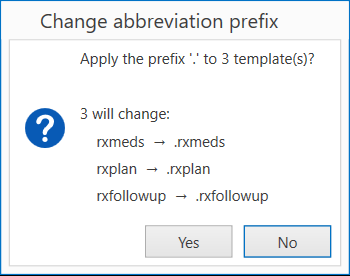
Review the confirmation before proceeding. It shows how many abbreviations will change and up to three before-and-after examples from your templates. Templates with no abbreviation are counted but skipped. You will also be warned if removing a prefix would leave any abbreviations empty.
When removing a text prefix, check the examples carefully. Matching is case-sensitive, and the confirmation points out abbreviations that do not match. No is selected by default, and an accepted change cannot be undone.
If no abbreviations would change, PhraseExpander displays a message explaining why instead of asking for confirmation.